Validating T4 & T4A XML Files using an XML Parsing Tool with CRA Schema
GOAL: To provide a wholistic overview of how to validate your XML Files for finalized submission to CRA to clear out any Errors.
Helpful Links:
Link to Find & Download CRA Schema (XSDs): File information returns electronically (tax slips and summaries) - Get ready to file - Canada.ca
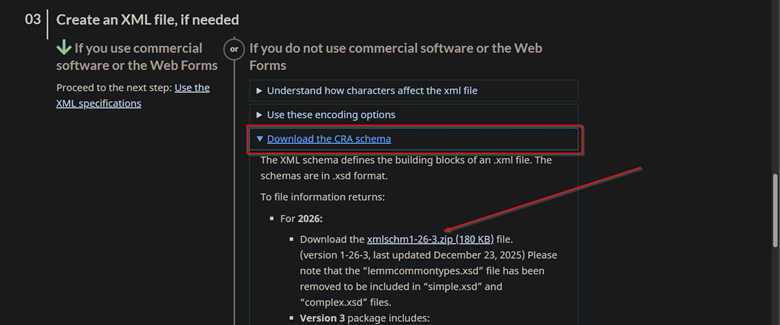
Link to CRA How to File: File information returns electronically (tax slips and summaries) - How to file - Canada.ca
T4 What’s New: T4, Statement of Remuneration Paid - Canada.ca
T4A What’s New: T4A, Statement of Pension, Retirement, Annuity, and Other Income - Canada.ca
T619 What’s New: T619, Electronic Transmittal - Canada.ca
Possible XML Editors to use:
- Altova XMLSpy
- Stylus Studio XML
- Oxygen XML
- Any other preferred XML Editor that supports XSD Schema validation
Open XML Editor >> Load Sample T4.xml File
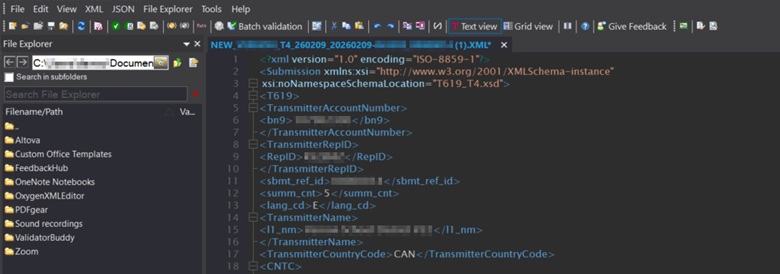
STEP 1: Check Well-Formatted
Choose XML >> Check if Well-Formatted
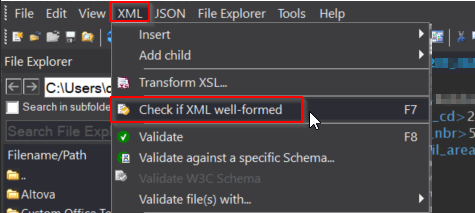
**Ensure the document is well formatted**
Sample Well-Formatted results message

**This confirms the document is well formatted**
STEP 2: Schema Validation
Once the Document is open >> Choose XML >> Validate >> Validate against a specific Schema
Important Note: The actual naming convention and exact sequence of options can vary depending on your XML Editor of choice
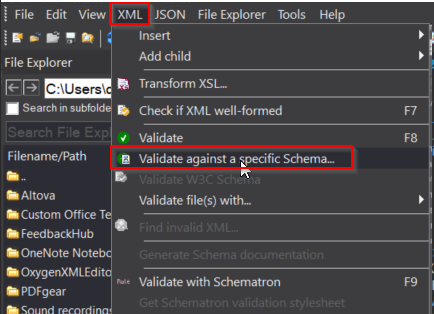
**Choose Validate Against specific Schema**
Choose the Find Folder […] icon to choose the Schema to Validate with
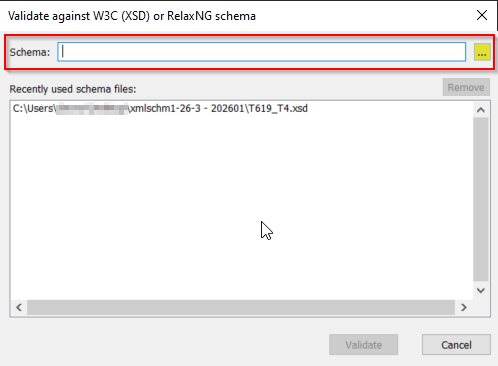
Note: Any previous/historical Schemas chosen will populate in the list below.
Ensure the appropriate XML Schema is chosen > Click Validate.
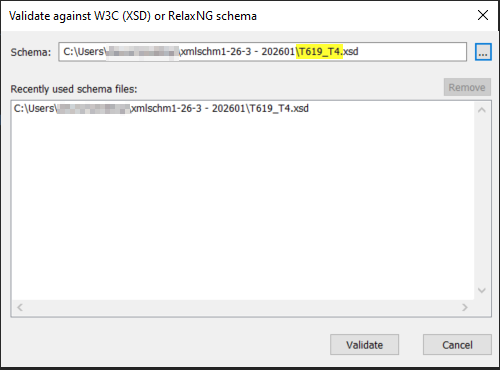
**This Validates our T4/T4A XML against the chosen XSD Schema**
View the RESULTS Tab at the bottom for the results
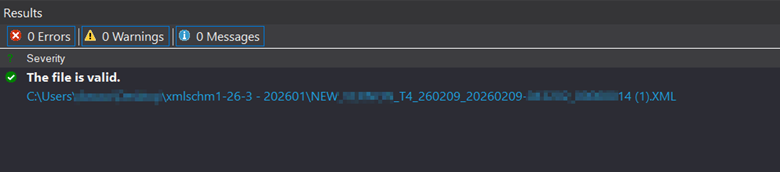
**Here we can see the file is valid**
If there was an error, it would appear similar to what is shown below;
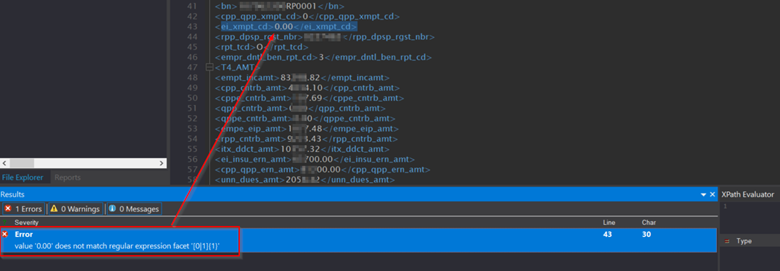
The Error outlines the problem encountered in Validation, and clicking the Error jumps to the specific line in question.
Frequent XML Validation Issues:
ISSUE 1: <ei_xmpt_cd> tag as “Dollar” value [0.00] instead of 0
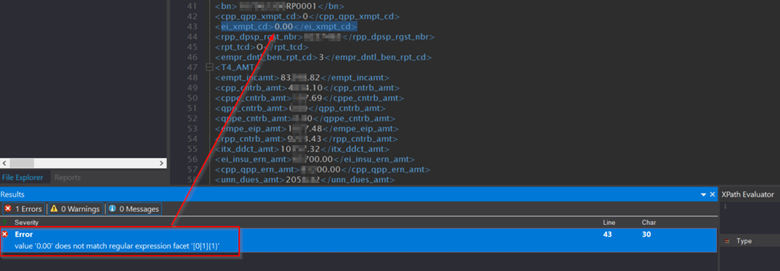
**Edit the value to ‘0’ in the XML >> Save >> Re-Validate**
ISSUE 2: <init><init> tag is NULL
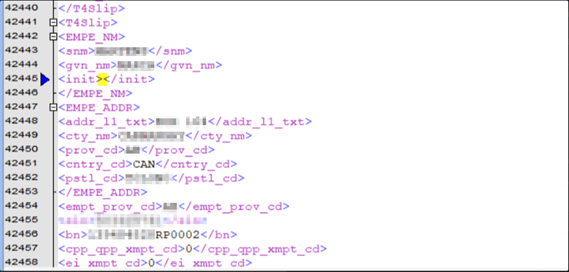
**This value should either Populate (as shown below), or not generate if NULL**
Note: This fix was developed and released into HRP and should no longer be happening. The system will now only generate the <init><init> tag if it populates with a value.
If NULL, the system will not generate the tag.
Sample <init><init> value populating correctly
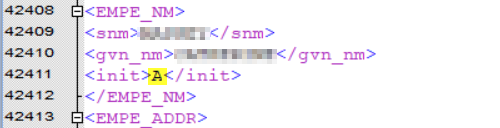
**Correct**
ISSUE 3: Negative CPP/CPP2 <cpp_cntrb_amt> OR <cppe_cntrb_amt>
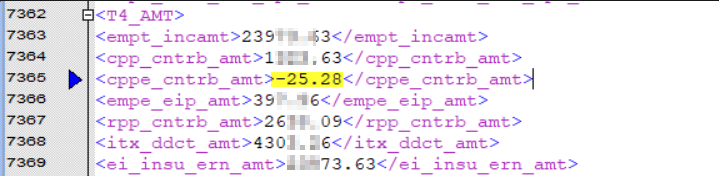
**Ensure any instance of negative CPP/CPP2 is updated and reconciled as this can NOT be negative**
Note: The system has been updated and patched to improve code logic and CPP(2) calculations to substantially reduce the chance of this happening.
ISSUE 4: <cty_nm> exceeds max length 28 Characters
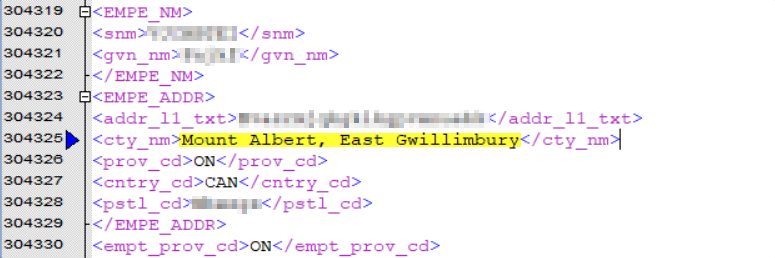
**Reduce City Name = ‘East Gwillimbury’ is sufficient to bringing it within the max length**
ISSUE 5: Invalid <prov_cd>
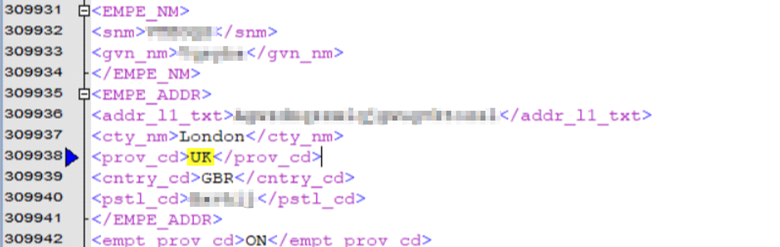
Validation Error = Value ‘UK’ does not match any member type of the union
F1 Help Menu
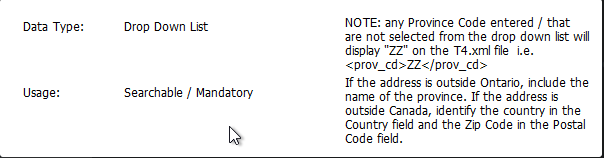
Update <prov_cd> tag = ‘ZZ’ for Out of Country
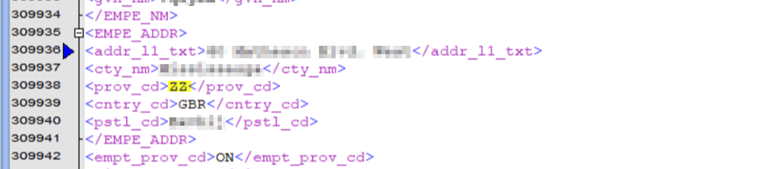
**This will allow File to be Validated Successfully**
ISSUE 6: Invalid [too long] Address for Out of Country record
Note: In this scenario, it is normal to have the Address for Out of Country residents updated to the Address of the Board Office – as shown below.
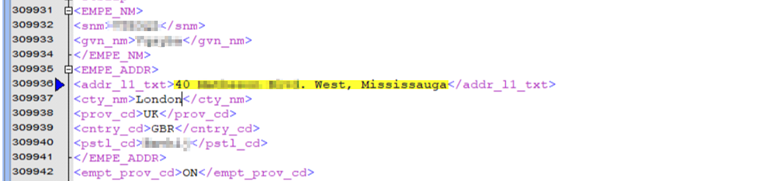
**Move ‘Mississauga’ to <cty_cd> to reduce <addr_11_txt>**
Validation Error: Value ’40 ________ ____. West, Mississauga’ has length > 30 character max limit.
<addr_11_txt> reduced, <cty_nm> updated and <prov_cd> reconciled
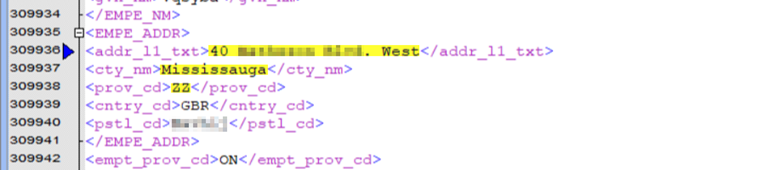
**Validation = Successful**
Additional Troubleshooting Steps:
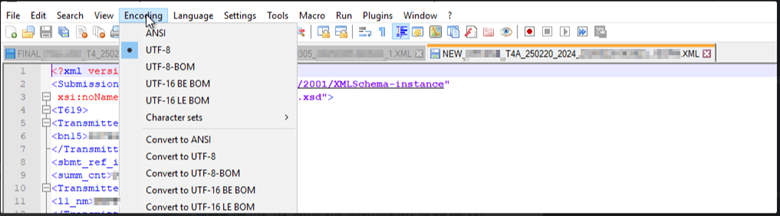
- Ensure the Encoding = UTF-8